Monday, May 25, 2020

Using Samba in Xubuntu

Execute:

shares-admin

Unfortunately neither shares-admin (crashes) nor system-config-samba (deprecated) work in recent Xubuntu releases. Other than in Nautilus we do not have an option to share directories from Thunar.

This apparently means that as of today we do not have a working graphical method to setup Samba shares in Xubuntu.

So after installing samba and defining a Samba user with:

sudo apt install samba
sudo smbpasswd -a [user]  ## [user] must already exist for Xubuntu

We can use the command net usershare for adding directories. Because of better copy & paste ability I find it more convenient to create an entry in /etc/samba/smb.conf:

[share name]
    path = full path to shared directory
    comment = optional description
    writeable = yes
    browseable = yes
    read only = yes
    guest ok = yes

Further options for smb.conf can be read in the Samba documentation. The named share will be available after a restart of the samba server.

How to run DOS programs in Linux using QEMU and FreeDOS

https://www.qemu.org/docs/master/system/quickstart.html#

https://www.youtube.com/watch?v=SHMUMeEzSS0

c:> qemu-system-x86_64.exe -boot d -cdrom FDCD.iso -m 1024


Step 1: Set up a virtual disk

You'll need a place to install FreeDOS inside QEMU, and for that you'll need a virtual C: drive. In DOS, drives are assigned with letters—A: and B: are the first and second floppy disk drives and C: is the first hard drive. Other media, including other hard drives or CD-ROM drives, are assigned D:, E:, and so on.

Under QEMU, virtual drives are image files. To initialize a file that you can use as a virtual C: drive, use the qemu-img command. To create an image file that's about 200MB, type this:

qemu-img create dos.img 200M

Compared to modern computing, 200MB may seem small, but in the early 1990s, 200MB was pretty big. That's more than enough to install and run DOS.

Step 2: QEMU options

Unlike PC emulator systems like VMware or VirtualBox, you need to "build" your virtual system by instructing QEMU to add each component of the virtual machine. Although this may seem laborious, it's really not that hard. Here are the parameters I use to boot FreeDOS inside QEMU:

qemu-system-i386

QEMU can emulate several different systems, but to boot DOS, we'll need to have an Intel-compatible CPU. For that, start QEMU with the i386 command.

-m 16

I like to define a virtual machine with 16MB of memory. That may seem small, but DOS doesn't require much memory to do its work. When DOS was king, computers with 16MB or even 8MB were quite common.

-k en-us

Technically, the -k option isn't necessary, because QEMU will set the virtual keyboard to match your actual keyboard (in my case, that's English in the standard U.S. layout). But I like to specify it anyway.

-rtc base=localtime

Every classic PC provides a real time clock (RTC) so the system can keep track of time. I find it's easiest to simply set the virtual RTC to match your local time.

-soundhw sb16,adlib,pcspk

If you need sound, especially for games, I prefer to define QEMU with SoundBlaster16 sound hardware and AdLib Music support. SoundBlaster16 and AdLib were the most common sound hardware in the DOS era. Some older programs may use the PC speaker for sound; QEMU can also emulate this.
-device cirrus-vgaTo use graphics, I like to emulate a simple VGA video card. The Cirrus VGA card was a common graphics card at the time, and QEMU can emulate it.

-display gtk

For the virtual display, I set QEMU to use the GTK toolkit, which puts the virtual system in its own window and provides a simple menu to control the virtual machine.
-boot order=You can tell QEMU to boot the virtual machine from a variety of sources. To boot from the floppy drive (typically A: on DOS machines) specify order=a. To boot from the first hard drive (usually called C:) use order=c. Or to boot from a CD-ROM drive (often assigned D: by DOS) use order=d. You can combine letters to specify a specific boot preference, such as order=dc to first use the CD-ROM drive, then the hard drive if the CD-ROM drive does not contain bootable media.

Step 3: Boot and install FreeDOS

Now that QEMU is set up to run a virtual system, we need a version of DOS to install and boot inside that virtual computer. FreeDOS makes this easy. The latest version is FreeDOS 1.2, released in December 2016.

Download the FreeDOS 1.2 distribution from the FreeDOS website. The FreeDOS 1.2 CD-ROM "standard" installer (FD12CD.iso) will work great for QEMU, so I recommend that version.

Installing FreeDOS is simple. First, tell QEMU to use the CD-ROM image and to boot from that. Remember that the C: drive is the first hard drive, so the CD-ROM will show up as the D: drive.

qemu-system-i386 -m 16 -k en-us -rtc base=localtime -soundhw sb16,adlib -device cirrus-vga -display gtk -hda dos.img -cdrom FD12CD.iso -boot order=d

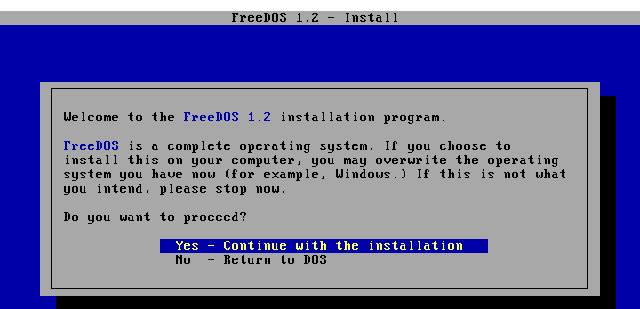
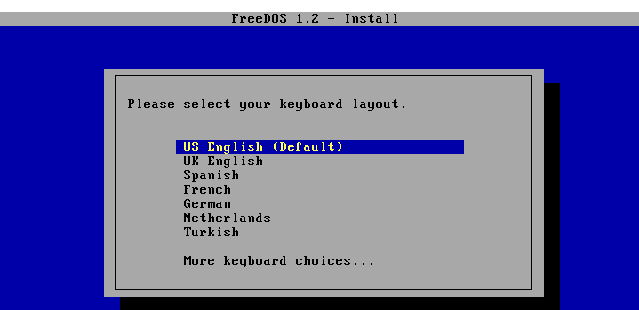
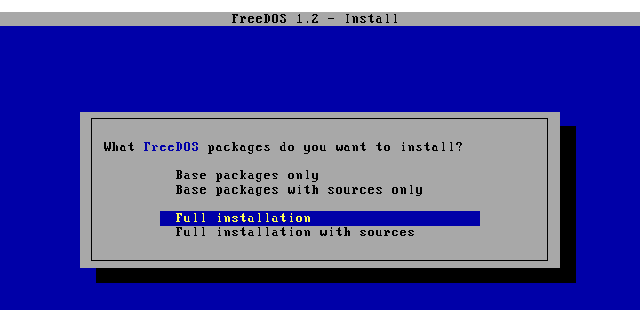
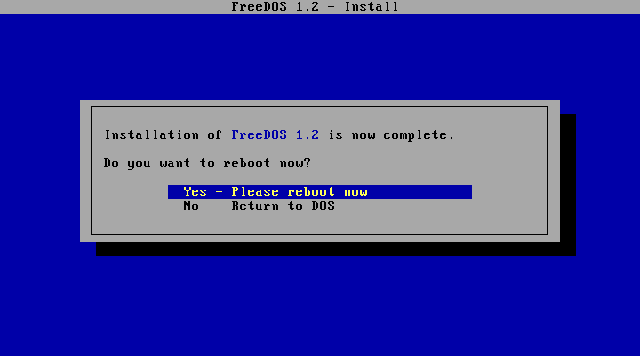
Just follow the prompts, and you'll have FreeDOS installed within minutes.

After you've finished, exit QEMU by closing the window.

Step 4: Install and run your DOS application

Once you have installed FreeDOS, you can run different DOS applications inside QEMU. You can find old DOS programs online through various archives or other websites.

QEMU provides an easy way to access local files on Linux. Let's say you want to share the dosfiles/ folder with QEMU. Simply tell QEMU to use the folder as a virtual FAT drive by using the -drive option. QEMU will access this folder as though it were a hard drive.

-drive file=fat:rw:dosfiles/

Now, start QEMU with your regular options, plus the extra virtual FAT drive:

qemu-system-i386 -m 16 -k en-us -rtc base=localtime -soundhw sb16,adlib -device cirrus-vga -display gtk -hda dos.img -drive file=fat:rw:dosfiles/ -boot order=c

Once you're booted in FreeDOS, any files you save to the D: drive will be saved to the dosfiles/ folder on Linux. This makes reading the files directly from Linux easy; however, be careful not to change the dosfiles/ folder from Linux after starting QEMU. QEMU builds a virtual FAT table once, when you start QEMU. If you add or delete files in dosfiles/ after you start QEMU, the emulator may become confused.

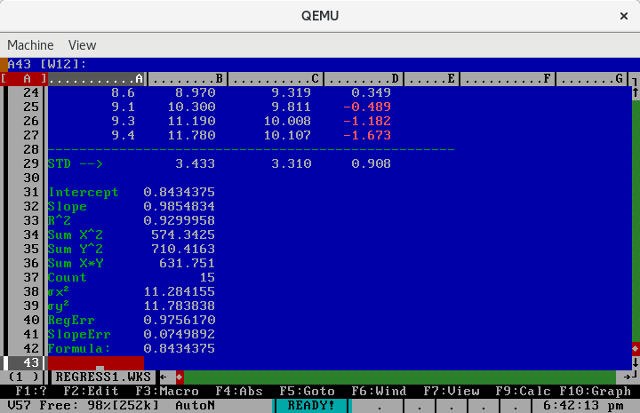
I use QEMU like this to run my favorite DOS programs, like the As-Easy-As spreadsheet program. This was a popular spreadsheet application from the 1980s and 1990s, which does the same job that Microsoft Excel and LibreOffice Calc fulfill today, or that the more expensive Lotus 1-2-3 spreadsheet did back in the day. As-Easy-As and Lotus 1-2-3 both saved data as WKS files, which newer versions of Microsoft Excel cannot read, but which LibreOffice Calc may still support, depending on compatibility.

aseasy-regress1.png

As-Easy-As spreadsheet program

As-Easy-As spreadsheet program

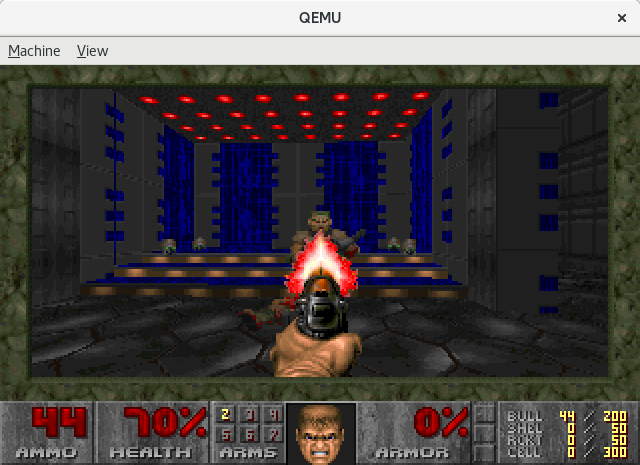
I also like to boot FreeDOS under QEMU to play some of my favorite DOS games, like the original Doom. These old games are still fun to play, and they all run great under QEMU.

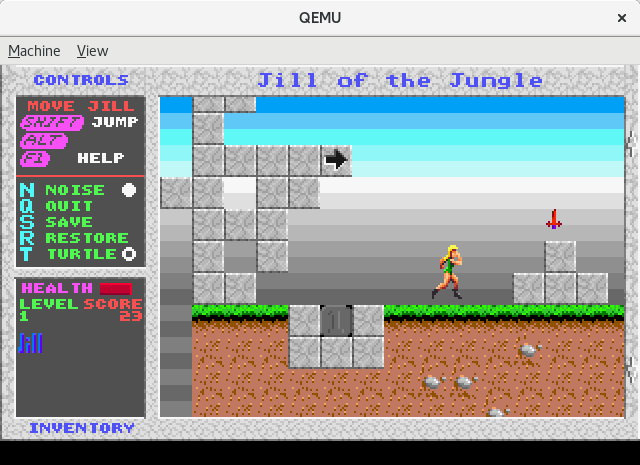
qemu-jill.png

Jill of the Jungle

Jill of the Jungle

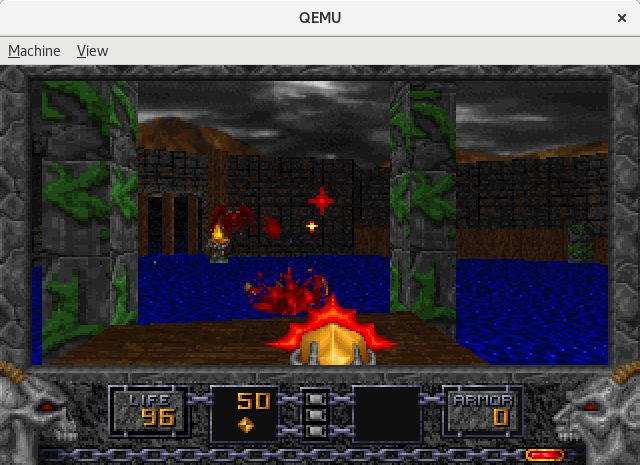
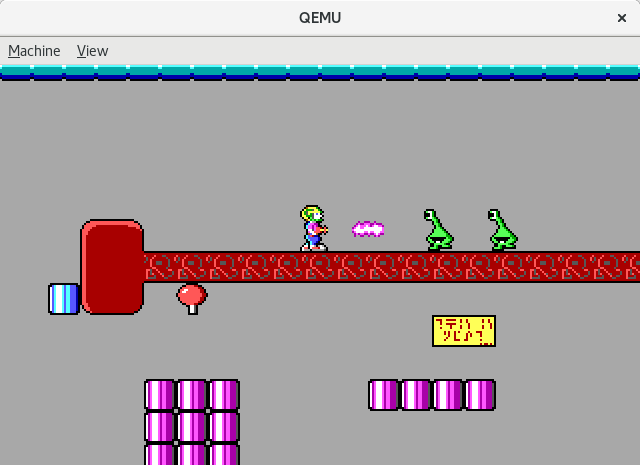
qemu-keen.png

Commander Keen

Commander Keen

QEMU and FreeDOS make it easy to run old DOS programs under Linux. Once you've set up QEMU as the virtual machine emulator and installed FreeDOS, you should be all set to run your favorite classic DOS programs from Linux.

All images courtesy of FreeDOS.org.

Topics 


Sunday, May 24, 2020

Windows 10 mobile hotspot

Turn it on

In Change Adapter Setting
Local Area Network 12 is created
Share WIFI24 with Local Area Network 12.
Connect for XP machines

I get this error "No Internet Connection" when joining the hotspot.

  1. Start Command Prompt as administrator. 
  2. When Command Prompt opens, enter the following lines:
    netsh winsock reset
    netsh int ip reset
  3. Restart your computer.

This works for dynamic IP address.   You might want to try these commands as well:


ipconfig /release
ipconfig /flushdns
ipconfig /renew


x11VNC configuration

Type this in a shell
./vnc.sh
or
x11vnc -safer -localhost -nopw -once -display :0

go read: How to Tunnel VNC Connection through SSH Using PuTTY

VNC is a protocol that allows a desktop to be viewed and controlled remotely over the Internet.  This is how to create VNC tunnel via SSH.
 
Requirements:

Ubuntu system (as VNC Server)
Windows system (as VNC Viewer)
PuTTY for Windows
TightVNC Viewer for Windows
In Ubuntu PC, install x11vnc and openssh-server:

$ sudo apt-get install x11vnc openssh-server
Make sure your firewall allows incoming connection on port 22.

In WIndows need: PuTTY, TightVNC

Run PuTTY 
Connection > SSH > Tunnels.
5902 for Source port
127.0.0.1:5900 for Destination
./vnc.sh in SSH
Add

Session section of PuTTY
Host Name: abeto.servebeer.com
Port 22
open


TightVNC / RealVNC Viewer.
127.0.0.1::5902 for VNC server and press Connect.


Resources:
https://www.howtoforge.com/setting-up-a-linux-file-server-using-samba
http://colekcolek.com/2011/10/20/tunnel-vnc-connection-ubuntu/


Install Office 97 using wine in Ubuntu 64bit OS

REMOVE OLD WINE

sudo apt remove wine wine1.8 wine-stable libwine* fonts-wine* && sudo apt autoremove


INSTALL WINE:

Follow instructions here

https://wiki.winehq.org/Ubuntu

If your system is 64 bit, enable 32 bit architecture (if you haven't already):
sudo dpkg --add-architecture i386

Add the repository:
wget -nc https://dl.winehq.org/wine-builds/Release.key
sudo apt-key add Release.key
sudo apt-add-repository https://dl.winehq.org/wine-builds/ubuntu/


sudo apt-get install --install-recommends winehq-stable


Menu > Adminstration > Software Manager
search WINE > install
search WINETRICKS > install

 
Install Office97
DO CUSTOM INSTALL
do not install access wizards
do not install Binder, Outlook

INSTALL OFFICE SERVICE RELEASE 1
INSTALL OFFICE SERIVCE RELEASE 2
INSTALL JETPACK35

home > .wine > drive_c > program files (x86) > Microsoft Office > office > msaccess.exe


IF WORKGROUP ERROR
run WRKGADM.EXE
create
oem/oem/orings
c:\windows\system32\system.mdw (all caps)


#No DOSBOX for Lyon. 
search DOSBOX Emulator > install
menu> games> DOSBox Emulator (right click) > Add to desktop
run DOSBox once to create .dosbox
copy dosbox-0.74.conf to .dosbox

rename DOSBox to LYON
L=lyon
O=Orings

copy DATA to .wine drive_c root
copy LYON to .wine drive_c root
map to Y: drive (old Z:)


IVT
OPEN EXCEL
OPEN WORD
OPEN ACCESS
# Run LYON DOSBOX

while opening access database,
TOO COMPLICATED OR COMPLEX ERROR
OPEN MODULE (CREATE A NEW ONE IF NEED TO)
TOOLS > REFERENCE
REMOVE MISSING REFERENCES. 
media player is missing

Backup of your .wine folder
cp -R .wine .wine-<insert-current-date>


****************************************************************
DON'T NEED THESE ANYMORE (SKIPPED)

INSTALL OPENGL and 32bit libraries

Create a 32-bit Wine prefix since you need a 32-bit Wine environment to run 32-bit Windows applications.

WINEPREFIX=~/home/[USERNAME]/.wine WINEARCH=win32 winetricks dotnet20 msxml6 corefonts vcrun2015

WINE CONFIGURATION
For WINE 1.x, use Windows XP.  
WINEPREFIX=~/.wine winecfg

select “Run Winecfg” Go to the Libraries tab.
Add
comctl32
gdiplus
msxml3
msxml6
richedit20
richedit30

You should see "*msxml6 (native, built-in)" in the "Existing overrides" section.

Highlight it and click Edit and select "Native (Windows)" and click OK. Now, it should show up as "*msxml6 (native)"

Then add the "riched20" and "gdiplus" libraries from the "New override for library" section and make sure these are also set as "Native"


CREATE 32-BIT WINEPREFIX:
Terminal >
WINEARCH=win32 WINEPREFIX=~/win32 winecfg

Application > Default Settings > Windows XP
Libraries > New override for library > ????????????????????

WINETRICKS:
terminal >
env WINEPREFIX=~/win32 winetricks

select "Select the default wineprefix"
    Winetricks - current prefix is "/home/[USERNAME]/win32/"

INSTALL A WINDOWS DLL OR COMPONENT
comctl32
dotnet20
gdiplus
gdiplus-winxp
jet40 (this is absolutely necessary)
jet40 needs ~oem04/.cache/winetricks/mdac27/mdac_typ.exe

riched20 (skip it fails with sha1 sum mismatch)
riched30 (skip it fails with sha1 sum mismatch)

vb6run

INSTALL A FONT
select "Install a font"
corefonts         


Install Office97
WINEPREFIX=~/win32 wine /home/oem04/Downloads/Off97-Pro/SETUP/DISK1/SETUP.EXE
do custom install
msaccess turn off wizard

to run Winword link
env WINEPREFIX="/home/oem04/win32" wine C:\\windows\\command\\start.exe /Unix /home/oem04/win32/dosdevices/c:/users/oem04/Start\ Menu/Programs/Microsoft\ Office/Microsoft\ Word.lnk

INSTALL OFFICE SERVICE RELEASE 1
WINEPREFIX=~/win32 wine /home/oem04/Downloads/Service Release 1/sr1off97.exe

INSTALL OFFICE SERIVCE RELEASE 2

Windows virtual router

CMD run as an administrator

netsh wlan show drivers 
netsh wlan set hostednetwork mode=allow ssid=NG0VR2 key=password
The hosted network mode has been set to allow.
The SSID of the hosted network has been successfully changed.
The user key passphrase of the hosted network has been successfully changed.

netsh wlan start hostednetwork
            The hosted network started.
or 
The hosted network couldn't be started.
A device attached to the system is not functioning.

  1. Start Command Prompt as administrator. 
  2. When Command Prompt opens, enter the following lines:
    netsh winsock reset
    netsh int ip reset
  3. Restart your computer.

 netsh wlan stop hostednetwork

It will create 
Local Area Connection* 12

goto wifi24 (eth0) and share with Local Area Network* 12


CIDR conversion table

CIDR LengthMask# Networks# Hosts
  /1128.0.0.0128 A    2,147,483,392  
  /2192.0.0.064 A    1,073,741,696  
  /3224.0.0.032 A    536,870,848  
  /4240.0.0.016 A    268,435,424  
  /5248.0.0.08 A    134,217,712  
  /6252.0.0.04 A  67,108,856  
  /7254.0.0.02 A  33,554,428  
  /8255.0.0.01 A    16,777,214  
  /9255.128.0.0128 B  8,388,352  
  /10255.192.0.064 B  4,194,176  
  /11255.224.0.032 B  2,097,088  
  /12255.240.0.016 B  1,048,544  
  /13255.248.0.08 B  524,272  
  /14255.252.0.04 B  262,136  
  /15255.254.0.02 B  131,068  
  /16255.255.0.01 B  65,024  
  /17255.255.128.0128 C  32,512  
  /18255.255.192.064 C    16,256  
  /19255.255.224.032 C    8,128  
  /20255.255.240.016 C    4,064  
  /21255.255.248.08 C    2,032  
  /22255.255.252.04 C    1,016  
  /23255.255.254.02 C    508  
  /24255.255.255.01 C    254  
  /25255.255.255.128  2 subnets  124  
  /26255.255.255.192  4 subnets  62  
  /27255.255.255.224  8 subnets  30  
  /28255.255.255.240  16 subnets  14  
  /29255.255.255.24832 subnets  6  
  /30255.255.255.25264 subnets  2  
  /31  255.255.255.254    none  none
  /32255.255.255.255  1/256 C1  


A network is called a supernet when the prefix boundary contains fewer bits than the network's natural (i.e. classful) mask. A network is called a subnet when the prefix boundary contains more bits than the network's natural mask.

Examples

209.60.128.0 is a class C network address with a natural mask of /24.

209.60.128.0 /22 is a supernet which yields:

209.60.128.0 /24
209.60.129.0 /24
209.60.130.0 /24
209.60.131.0 /24

192.0.0.0 /25
Subnet    Host Range
  0        192.0.0.1      -  192.0.0.126
  1        192.0.0.129  -  192.0.0.254

192.0.0.0 /26
Subnet Host Range
0 192.0.0.1 - 192.0.0.62
1 192.0.0.65 - 192.0.0.126
2 192.0.0.129 - 192.0.0.190
3 192.0.0.193 - 192.0.0.254

192.0.0.0 /27
Subnet Host Range
0 192.0.0.1 - 192.0.0.30
1 192.0.0.33 - 192.0.0.62
2 192.0.0.65 - 192.0.0.94
3 192.0.0.97 - 192.0.0.126
4 192.0.0.129 - 192.0.0.158
5 192.0.0.161 - 192.0.0.190
6 192.0.0.193 - 192.0.0.222
7 192.0.0.225 - 192.0.0.254


Reserved Network Numbers


ClassStartEnd# HostsComment
  A  10.0.0.0  10.255.255.255  16,777,216  a single Class A network number
  B  172.16.0.0  172.31.255.2551,048,544  16 contiguous Class B network numbers
  C  192.168.0.0    192.168.255.255  65,534  256 contiguous Class C network numbers  

Setting up VPN on zerotier

https://www.digitalocean.com/community/tutorials/getting-started-software-defined-networking-creating-vpn-zerotier-one


How to mount network drive in Ubuntu

**

sudo mkdir /media/k

sudo apt-get install cifs-utils

sudo gedit /etc/nsswitch.conf
    hosts: files mdns4_minimal [NOTFOUND=return] dns
change it into:
    hosts: files mdns4_minimal [NOTFOUND=return] wins dns

sudo apt-get install libnss-winbind winbind

sudo gedit ~/.smbcredentials
username=[]
password=[]
domain=WORKGROUP

root@20180705:~# id dlee
uid=1000(dlee) gid=1000(dlee) groups=1000(dlee),4(adm),20(dialout),24(cdrom),27(sudo),30(dip),46(plugdev),116(lpadmin),126(sambashare)

sudo gedit /etc/fstab
//10.147.18.10/c /media/k cifs credentials=/home/dlee/.smbcredentials,iocharset=utf8,gid=1000,uid=1000,file_mode=0777,dir_mode=0777 0 0


sudo mount -a


HOW TO MOUNT X DRIVE

GOOD
sudo mount -t cifs -v //10.147.18.10/c/ /media/x_drive/ -o username=[],password=[]
sudo mount -t cifs -v //10.147.18.20/c/ /media/k/ -o username=oem,password=dodgers
sudo mount -t cifs -o credentials=/home/dlee/.smbcredentials //10.147.18.10/c /media/x_drive
sudo mount -t cifs -o credentials=/home/dlee/.smbcredentials -v //10.147.18.20/c /media/k

sudo gedit /home/dlee/.smbcredentials
sudo gedit ~/.smbcredentials
    username=[]
    password=[]
    domain=[]


smbclient //10.147.18.20/c -U oem
//10.147.18.10/c /media/x_drive cifs username=oem,password=dodgers 0 0

smbtree -b -N
nmblookup -A 10.147.18.10

sudo umount /media/k
sudo umount /media/x_drive


Reconnecting with SMB1 for workgroup listing.
Connection to 192.168.2.101 failed (Error NT_STATUS_RESOURCE_NAME_NOT_FOUND)
Failed to connect with SMB1 -- no workgroup available

sudo gedit /etc/samba/smb.conf
And then add the following line anywhere in the file:
client max protocol = NT1


Monday, May 18, 2020

"Request timed out" while pinging : ROUTE PRINT

You can't have multiple default gateways in your routing table because your PC will not always know the same path for your default route to the internet (0.0.0.0 /0).  

The VM decides to use ZeroTier gateway as the default route, but ZT doesn't have a path to the internet.  In order to verify this, do the following:

Go to cmd.exe

type: route print

You will see this.  You are interested in 0.0.0.0 /0.  


Here you see two entries to GATEWAY.  Your PC will not always choose the correct path.  If it chose ZeroTier gateway, you can't ping yahoo.com.  You want it to choose 192.168.1.1 GATEWAY.

In order to fix this, Control Panel -> Network and Sharing Center -> Change Adapter Settings

Right Click the ZeroTier Adapter and click Properties

Click Internet Protocol version 4 and click Properties

Delete the default gateway.  Who told you to type this in the first place? 


Type route print at CMD box.   You should see just entry now.  You are set. 


To delete a route in command line:

  1. Run as administrator or sudo -i
  2. route delete 0.0.0.0 and press Enter to delete the routing table entry for the default gateway.
  3. Type route print and press Enter.
  4. Type ping 8.8.8.8 to test Internet connectivity. The ping should fail.

To add a route:

  1. Type route add 0.0.0.0 mask 0.0.0.0 192.168.1.1  metric 1 Then press Enter.
  2. Type ping 8.8.8.8 to test Internet connectivity. The ping should be successful. 
  3. use ipconfig /renew to update your DHCP-assigned IP address and default gateway.

route -p add 0.0.0.0 mask 0.0.0.0 192.168.1.1 metric 1 
What it should look like.  Just one row of 0.0.0.0 / 192.168.1.1


How To Set Up a Samba Share For A Small Organization on Ubuntu 16.04


For Ubuntu to access Windows 10 files, you must install Samba and other supporting tools.

WINDOWS

net config workstation
know the workgroup name

UBUNTU

install samba

sudo apt-get install samba samba-common python-glade2 system-config-samba


Sunday, May 17, 2020

Bart's Modular Boot Disk; PXE server

Here is a list of all available modboot modules.
Please note: this list does not contain any network or aspi drivers...

help - Help module
Version:1.0
Last updated:Mar 26, 2002
Group:option
Downloadable file:help.cab (1KB)
Default location:\level1

This module enables very simple help information to the user. It will provide a list with the available commands.

Sample help output
aspi     Load ASPI drivers
cdrom    Load CD-Rom drivers
help     Show this help information
menu     Modboot small menu system
msnet    Load Microsoft Network Client drivers
scsitool Generic scsi diagnostics utility
edit     Small text editor (terse)
vc       Volkov Commander v4

Modules that want to have help support must have a "help" directory containing a small text file called %modulename%.hlp.

Example:

Here are the files for the msnet module:
autorun.bat
bin\msnet.bat
help\msnet.hlp
menu\msnet.mnu

Sample MSNET.HLP
msnet    Load Microsoft Network Client drivers

Note! The description "Load Micro..." must start at column 10!
Note 2! Do not use a tab, use spaces!

mouse - Mouse support
Version:1.1
Last updated:Mar 26, 2002
Group:option
Downloadable file:mouse.cab (5KB)
Default location:\level1

cdautrun - CD-Rom autorun module
Version:1.1
Last updated:Mar 26, 2002
Downloadable file:cdautrun.cab (2KB)
Default location:\lib
Notes:Set's %cddrv% environment variable to point to the first CD-Rom. Also runs \autorun.bat when it is on any CD-Rom.

This module searches all CD-Rom drives (using findcd) for a file called "autorun.bat" and the first one found will be executed. If no autorun.bat file is found on any CD, then it will located the first CD-Rom drive letter that holds a readable media and the current working directory will be set to the root of this drive. If there is no CD-Rom drive found that has a media than it will just print the first CD-Rom drive letter.
Also an environment variable %cddrv% is created.

dos - Dos module (fdisk, format, xcopy...)
Version:1.0
Last updated:Mar 26, 2002
Group:option
Default location:\level1
Notes:There is no file for download, you have to build this one yourself, just look here:
More information URL:/bootdisk/modboot/#dos

This module should contain several dos files like: fdisk, format, smartdrv, xcopy ...and so on...

Here are the steps:
  1. Download makev3.zip (59KB) and unpack it in some directory, in this example I will be using c:\modboot\makev3\
  2. Copy the Dos files you need into the directory "c:\modboot\makev3\source\dos\bin". Warning! You must use the same dos version as your boot files! Files to think off are: fdisk, format, doskey, xcopy
  3. Open a command prompt, goto the c:\modboot\makev3\ directory and run "make dos". If all goes OK, you can find your module as c:\modboot\makev3\cabs\dos.cab
  4. Just copy this file into the correct modboot level folder, for example "\level1"

xkeyb - Extended keyboard driver, like MS-KEYB
Version:1.0
Last updated:Jul 18, 2002
Group:option
Downloadable file:xkeyb.cab (21KB)
Default location:\level1
Notes:Written by Dietmar Hoehmann, maintained by Aitor Santamaria Merino. (GPL)
More information URL:http://www.ibiblio.org/pub/micro/pc-stuff/freedos/files/dos/xkeyb/

doskey - Free doskey
Version:1.0
Last updated:Jul 9, 2002
Group:option
Downloadable file:doskey.cab (5KB)
Default location:\level1
Notes:Doskey is written by Paul Houle.
More information URL:http://members.aol.com/paulhoule/doskey.htm

aspi - ASPI loader module
Version:1.0
Last updated:Mar 26, 2002
Downloadable file:aspi.cab (2KB)
Default location:\lib
Notes:Bart: This module needs optimization, but it works OK!

aspicd - ASPI CD-Rom driver
Version:1.0
Last updated:Mar 26, 2002
Downloadable file:aspicd.cab (10KB)
Default location:\lib

atapicd - ATAPI CD-Rom driver
Version:1.0
Last updated:Mar 26, 2002
Downloadable file:atapicd.cab (6KB)
Default location:\lib
Notes:This module contains a Generic IDE/ATAPI CD-Rom driver called "vide-cdd.sys" (v2.14) from Acer Peripherals, Inc. It also supports UDMA drives.
More information URL:http://www.acercm.com.tw/global/service/cdr/drivers2.htm

eltorito - El-Torito CD-Rom driver
Version:1.4
Last updated:Jul 31, 2002
Downloadable file:eltorito.cab (2KB)
Default location:\lib
Notes:Only works when booted from CD-Rom in "no-emulation mode".
Not in floppy emulation mode!
v1.4 Major bugfix, see more info link.
More information URL:/eltorito/

cdrom - CD-Rom loader module
Version:2.2
Last updated:Jul 9, 2002
Downloadable file:cdrom.cab (3KB)
Default location:\level0
Notes:v2.2 Added eltorito.sys, easy customize screen and more.

elboot - CD-Rom loader module
Version:1.2
Last updated:Jun 27, 2002
Downloadable file:elboot.cab (3KB)
Default location:\level0
Notes:v1.1: Now using a new version of eltorito.sys (v1.2)
v1.2: New version of eltorito.sys (v1.3)

shsucdx - CD-Rom Extensions
Version:1.0
Last updated:Mar 26, 2002
Group:cdredir
Downloadable file:shsucdx.cab (7KB)
Default location:\lib

mscdex - Microsoft CD-Rom Extensions
Version:1.0
Last updated:Mar 26, 2001
Group:cdredir
Downloadable file:mscdex.cab (14KB)
Default location:\lib

utils - Batch utilities
Version:1.8
Last updated:Aug 29, 2002
Downloadable file:utils.cab (34KB)
Default location:\level0
Notes:v1.7: lmod.com updated to v1.2.
v1.8: pciscan.exe updated to v1.5a.

Utils.cab uses the following tools:
  • Wbat, Lmod, Tfind and Crc32 written by Horst Schaeffer (freeware), distributed with permission.
  • PciScan, Ettool by Bart Lagerweij (Nu2 license).
  • Terse 1.5, Tiny text editor. Written by by Joseph (Yossi) Gil (freeware).
  • Device.com, used to load device drivers. Don't know who wrote it, got it from Qemm 7. Not sure if freeware, but I see that other people also distribute it.

menu - Menu module
Version:1.0
Last updated:Mar 26, 2002
Downloadable file:menu.cab (1KB)
Default location:\level3

This module enables a small menu system to the user. It will provide a list with the available options.

Modules that want to have menu support must have a "menu" directory containing a small text file called %modulename%.mnu.

Example:

Here are the files for the msnet module:
autorun.bat
bin\msnet.bat
help\msnet.hlp
menu\msnet.mnu

Sample MSNET.MNU
Load CD-Rom drivers~%ramdrv%\bin\cdrom.bat

The first part "Load CD-Rom drivers" is the menu title and the second part (separated by a tilde "~") is the command to execute.

cdormenu - Autostart CD-Rom or Menu module
Version:1.1
Last updated:Jul 29, 2002
Downloadable file:cdormenu.cab (1KB)
Default location:\level3

This module gives you the option to bypass loading CD-Rom drivers and display the menu. After a 5 second timeout CD-Rom driver will be loaded. You can use this if you have a combined CD-Rom and network bootdisk.

msnet - MS network loader module
Version:2.7
Last updated:Sep 4, 2002
Downloadable file:msnet.cab (10KB)
Default location:\level0
Notes:For changes see:
More information URL:#history

msclient - MS client files
Version:1.2
Last updated:Aug 29, 2002
Downloadable file:msclient.cab (278KB)
Default location:\lib
Notes:v1.2: added bfind.exe

mstcp - MS TCP/IP module
Version:1.1
Last updated:Mar 26, 2002
Downloadable file:mstcp.cab (112KB)
Default location:\lib

msnwlink - MS NWLink module
Version:1.0
Last updated:Mar 26, 2002
Downloadable file:msnwlink.cab (8KB)
Default location:\lib

whatnic - What (PCI) network adapter is in my system?
Version:1.x
Last updated:Always
Downloadable file:whatnic.cab (3KB)
Default location:\level0
Notes:Detect what driver plugin to use for your network adapter.
More information URL:/bootdisk/modboot/#whatnic

If you are unsure what network driver to use for your adapter, download whatnic.cab (3KB) and put in into \level1 of a basic modboot disk. Also download utils.cab (34KB) and put in into \level0. When booted from your modboot disk run "whatnic" at the command prompt.

sshdos - SSHDOS v0.91, secure shell to remote hosts
Version:1.2
Last updated:Apr 23, 2002
Downloadable file:sshdos.cab (64KB)
Default location:\lib
Notes:Writtten by Nagy Daniel. Use "run sshdos ..." to start.
More information URL:http://sshdos.sourceforge.net/

scpdos - SCPDOS v0.91, secure file transfer utility
Version:1.2
Last updated:Apr 23, 2002
Downloadable file:scpdos.cab (60KB)
Default location:\lib
Notes:Writtten by Nagy Daniel. Use "run scpdos ..." to start.
More information URL:http://sshdos.sourceforge.net/

scsitool - SCSITool module
Version:1.0
Last updated:Mar 26, 2002
Downloadable file:scsitool.cab (87KB)
Default location:\level3
More information URL:/scsitool/

PeopleSpace International